=================================================
Top One Shop is a reliable online retailer of laptop batteries, laptop power cords, and other high-demand technology accessories.
The Alternative Laptop or Notebook Driver Download,Free Download, Free Driver
Application
Carmera i- Chicony Webcam
ii- Suyin Webcam
E-power:- Acer e-power management Application
LaunchManager Dritek:- Acer Launch Manager Application
Related Driver For Acer Systems
3G- Option:- 3G Module Driver
Qualcom:- 3G Module Driver
AHCI Intel:- SATA AHCI Driver
Audio Realtek:- Audio Driver
Bluethoot Broadcom:- Bluethoot Driver
CardReader Realtek:- Card Reader Driver
Chipset Intel:- Chipset Driver
LAN Atheros:- LAN Driver
Modem Agere:- Modem Driver
TouchPad
Synapties:- Touchpad Driver
VGA ATI:- VGA Driver
Intel:- VGA Driver
Wimax Intel:- Wimax Driver
Wireless LAN Atheros:- Wireless LAN Driver for AR5B91
Atheros Wireless LAN Driver
Intel Wireless LAN
QMI Wireless LAN
Please inform me if there have broken download link and give comment if you already download from this blog.
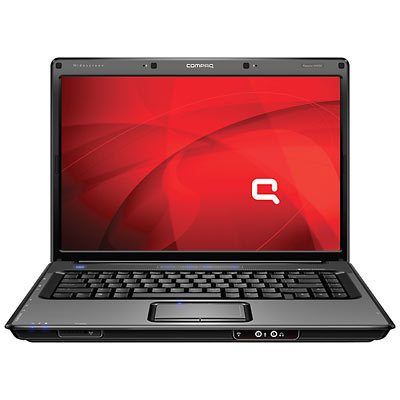
Here is the some driver for Compaq C795TU after complete install window XP,
I ‘ve allready try to my compaq and it work …
I. Get the following drivers and install in the given order only.
——————————————————————————
01. SM bus Controller – infinst_autol.exe (2.3MB)
02. WinXPSP2 Enhancements – sp28668_Enh4WinXPSP2.exe (3.3MB)
03. VGA/Display – winxp_14331_VGAGL960.exe
04. UAA Driver for HD Audio – sp32646_UAA4HDAudio.exe
05. Audio/Sound – download C795 audio driver (3MB) see the installation guide attached
06. Modem – SP36089.exe (6MB) see the installation guide attached
07. Wireless – download WIFI driver(6MB), sp34510_HP Wireless Assistant.exe (3.2MB)
08. Webcam – sp35414_HP 1.3MP Webcam Software Drivers.exe (5MB)
09. Dotnetfx2.0 – dotnetfx_2.0.exe (22MB)
10. Touchpad – sp35444_Synaptics Touchpad.exe (14MB)
11. Card Reader – sp33604.exe Ricoh 5-in-1 Card Reader (2.1MB)
12. Quick launch – sp38171_HP Quick Launch Buttons.exe (14MB)
13. Battery – sp32299_HP Battery Check.exe (3MB)
This model of Presario has an audio controller that supports the high definition audio. You need to have Microsoft Universal Audio Architecture (UAA) Bus Driver for high Definition Audio installed on the computer before installing the audio driver. Here is the link for the Microsoft Universal Audio Architecture Driver that need to be installed before installing the audio driver:
ftp://ftp.hp.com/pub/softpaq/sp33501-34000/sp33867.exe
Conexant Smart Audio 221 Driver:
http://www.mediafire.com/?dg0cmmkm4y4
Unzip to a folder..make note of location.
From Device Manager,right click “Audio Device on HD”, choose Update driver > No to connect > Install from a list or specific location > Select Don’t Search, I will choose the driver to install > For the Hardware Type select ‘Show All Devices’
Remove the check from “Show Compatible Hardware” and click on “Have Disk” > Next…browse to the unzipped folder and choose the “WiSVHe5.inf” > Ignore XP when it complains
Now reboot the system.
1. Click on Start and select Run. Now type devmgmt.msc and press enter.
2. Right click on “Audio device on High Definition Audio Bus” and click Update driver.
3. Select “Install from a list or specific location”
4. Click Next. Then select “Don’t search, I will choose the driver to install”
5. Click Next and then select “Sound, video and game controller” from the list.
6. Click Next and then click Have Disk.
7. Click Browse C:\swsetup\spXXXXX folder and the double click the V32 folder. Select the .inf file, click open and Continue with the onscreen instructions.
Similarly install Modem Drivers:
Conexant CX20548 Modem Driver:
ftp://ftp.hp.com/pub/softpaq/sp36001-36500/sp36089.exe
1.Right click on “Modem device on High Definition Audio Bus” and click Update driver.
2. Select “Install from a list or specific location”
3. Click Next. Then select “Don’t search, I will choose the driver to install”
4. Click Next and then select “Modem” from the list.
5. Click Next and then click Have Disk.
6. Click Browse C:\swsetup\spXXXXX folder and select the .inf file and click open and Continue with the onscreen instructions
To all my readers who’s was looking Toshiba Notebook,Laptop or PC please click the below link.
Before you start download the driver you must know what the model of your Notebook or laptop are you using.
Please follow the step by step below to search the correct driver for your systems.
1- Select Product
2-Select Series
3-Select Model
4-Click On Show Driver Button
And it will list down the related driver that you need it.. GoodLuck
Toshiba Driver Click Here or Click the above Toshiba Notebook picture.
Here The Link For Acer Product Driver for you to download, Please follow step by step below before you get the driver you need it:-
1-Select Product family
2-Select Product Line
3-Select Product Model ( At Confirm Selection it will aoutomatic show you the type or Notebook your search)
Ater that you select Operationg systems for your systems, it will list down the the driver you need it.. Gook Luck
Please Click Here or Click the Notebook picture at above.
To download the driver please follow this step by step below: -
Here is the link to download page Click Here or click the above Asus Notebook pciture.
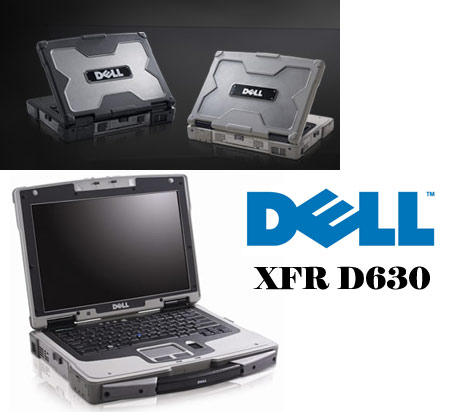
Dell is the most popular notebook brand, Here is the link for those who wanna to download dell driver for thier PC or Notebook.
Please click the picture above or click here to download page
Folow step by step to download the driver
1- Slect Brand
2- Select Family
and Click continue button
good luck
Click here to download page or click picture above
I. Get the following drivers and install in the given order only.
——————————————————————————
01. Chipset drivers – nVidia nForce chipset driver & Networking controller.exe (117MB)
02. AMD Processor Update – sp35445 (3MB)
03. WinXPSP2 Enhancements – sp28668_Enh4WinXPSP2.exe (3.3MB)
04. VGA/Display – see the manual Installation step below
05. UAA Driver for HD Audio – sp33566_UAA Bus Driver for HD Audio.exe (54MB)
06. HDMI Audio – HDMI-nForce_HDA_10.3.exe (7.5 MB)
07. Audio/Sound – download CQ60-101AU audio driver (3MB) (see help below to see how to install)
08. Modem – sp33839_Modem with SmartCP.exe(6MB)
09. Wireless – Wireless_Atheros.zip (2.2MB), sp34510_HP Wireless Assistant.exe (3.2MB)
10. Webcam – sp35414_HP 1.3MP Webcam Software Drivers.exe (5MB)
11. Dotnetfx2.0 – dotnetfx_2.0.exe (22MB)
12. Touchpad – Synaptics Touchpad.exe (6MB)
13. Quick launch – Quick launch buttons.exe (14MB)
14. Bluetooth – CQ60-101AU driver for bluetooth (98 MB)
——————————————————————–
I. Manual Installation Help for (04. VGA/Display)
——————————————————————–
1. Click START
2. Click RUN
3. Type “devmgmt.msc” in the prompt and click “OK”
4. In other devices>> right click “VGA adapter..”
5. Click “update driver”
6. Select “No, not this time” and Click “Next”
7. Select “Install from a list or specific location(Advanced)” and Click “Next”
8. Select “Don`t search. I will choose” and Click “Next”
9. From the list scroll down and select “Show All Devices” (the first option and not “Sound and video..”)
10. Click “Have Disk..”
11. Click “Browse” and choose this folder (the previous installation temp folder of chipset driver)
12. Select the “C:\NVIDIA\nForceWin2K\18.11\English\Display\nv4_disp.inf″ file and Click “Open”
13. Click “OK”
14. Select “NVIDIA GeForce 8200″
15. Click “Next”
16. Click “Finish”
—————————————————————-
II. Manual Installation Help for (06. Audio/Sound)
—————————————————————-
0. Download the corresponding file and unzip.
01. Click START
02. Click RUN
03. Type “devmgmt.msc” in the prompt and click “OK”
04. In other devices>> You will see two nos of “Audio Device on HD Audio Bus”
05. Right Click the first one and Click “disable”
06. In other devices>> right click the second Audio Device on ……..
07. Click “update driver”
08. Select “No, not this time” and Click “Next”
09. Select “Install from a list or specific location(Advanced)” and Click “Next”
10. Select “Don`t search. I will choose” and Click “Next”
11. From the list scroll down and select “Sound, video and game controller” and Click next
12. Click “Have Disk..”
13. Click “Browse” and choose this folder
14. Select the “/XP32/WiSVHe5″ file and Click “Open”
15. Click “OK”
16. Click “Next”
17. A menu appears saying “Installing …. Do you want to continue?” Click “YES”
18. Click “Continue Anyway”
===============================================================
—————————————————————-
III. Manual Installation Help for (09. Wireless )
—————————————————————-
0. Download the corresponding file and unzip.
1. Click START
2. Click RUN
3. Type “devmgmt.msc” in the prompt and click “OK”
4. In other devices>> right click “Ethernet Controller”
5. Click “update driver”
6. Select “No, not this time” and Click “Next”
7. Select “Install from a list or specific location(Advanced)” and Click “Next”
8. Select “Don`t search. I will choose” and Click “Next”
9. From the list scroll down and select “network Adapters” and Click “Next” wait
10. Click “Have Disk..”
11. Click “Browse” and choose this folder
12. Select the “/Atheros/net5211″ file and Click “Open”
13. Click “OK”
14. Click “Next”
15. Click “Finish”
If you are not able to install Windows XP on this laptop please see this post on how to install windows xp in CQ40-108TU
To successfully install the drivers in Compaq Presario CQ40-108TU Laptop with Windows XP operating System.
=================================================
****************FOR Intel Based laptops**************************
=================================================
I. Get the following drivers and install in the given order.
——————————————————————————
01. Intel Chipset drivers – Intel INF driver (2MB)
02. Intel Matrix Storage Manager - Intel MSM (21 MB)
03. Intel SATA driver – driver for SATA (3.3MB)
04. VGA/Display – video driver (19 MB)
05. Intel LAN Driver -Ethernet driver (4.5 MB)
06. Audio/Sound - (see the install instruction below)
07. Modem – sp33839_Modem with SmartCP.exe(6MB)
08. Wireless – Wireless_driver (29.4 MB)
09. Webcam – sp35414_HP 1.3MP Webcam Software Drivers.exe (5MB)
10. Dotnetfx2.0 – dotnetfx_2.0.exe (22MB)
11. Touchpad – Synaptics Touchpad.exe (6MB)
12. Quick launch – Quick launch buttons.exe (14MB)
13. Card Reader – driver for card-reader (3.3 MB)
14. Bluetooth – driver for bluetooth (98 MB)
15.HDMI Audio – HDMI-R203.exe (15 MB)
==================================================
******** FOR Nvidia Based Laptops *****************************
==================================================
01. Nvidia Chipset – chipset_driver (2.3MB)
02. nForce Network driver – Nvidia nForce (3.3MB)
03. VGA/Display - Geforce Video Driver
04. UAA Driver for HD Audio – sp33867_UAA4HDAudio.exe
05. Audio/Sound – download C783 audio driver (3MB) or try sp34386.exe
06. Modem – SP33742.exe (6MB)
07. Wireless - WIFI driver sp34152.exe (261 KB), sp34510_HP Wireless Assistant.exe (3.2MB)
08. Webcam – sp35414_HP 1.3MP Webcam Software Drivers.exe (5MB)
09. Dotnetfx2.0 – dotnetfx_2.0.exe (22MB)
10. Touchpad – sp35444_Synaptics Touchpad.exe (14MB)
11. Card Reader – Realtech 5-in-1 Card Reader (2.1MB)
12. Quick launch – sp29255_HP Quick Launch Buttons.exe (14MB)
13. Battery – sp32299_HP Battery Check.exe (3MB)
14.Bluetooth – Wireless sp32883.exe
========================
Extras
========================
Improving the Performance of Your Notebook PC with out adding additional memory.
Maximize the life of your battery
I. To install Audio driver on CQ40-108TU please follow these steps
===========================================================
1. download CQ40-108TU audio driver (18 MB) OR SP39671_IDT High Definition Audio CODEC (19MB)
2. Unzip the file to a folder then install Hotfix – kb888111 first ” \SP39671\HDAQFE\xpsp2\us\kb888111xpsp2.exe “
3. Now install the audio driver ” \SP39671\ setup.exe “
4. Do not reboot. Now you should be able to hear the audio. If not goto ” Device manager>System Devices>Microsoft UAA Bus Driver… > Right Click – Disable ” then Enable it again and follow steps 2 and 3.
5. After you hear the audio output proceed to next step, don’t reboot.
.
6. download “devcon” utility from microsoft. (78KB)
7. Unzip ‘devcon.exe’ and copy the ‘ I386\DevCon.exe ‘ file to ‘ C:\Windows\system32 ‘
8. Start > RUN > cmd
9. In the prompt type (without quotes) ” devcon find pci* “
10. Scroll up and look for a line before ” Microsoft UAA Bus driver for High Defenision Audio” some thing like this “PCI\VEN_10DE&DEV_055C&SUBSYS_30EA103C&REV_A1\3&2411E6FE&0&38: Microsoft UAA Bus
Driver for High Definition Audio”
.
11. Now copy the under lined part from your command prompt by “right clicking on the Title bar>Edit>Mark” and mark the line u need to copy (till the under lined part only) hit “Enter” to copy.
12. In the desktop create a text file called ‘ audio.txt ‘and paste it replacing the underlined characters as shown below with qoutes.
DEVCON.EXE RESTART “PCI\VEN_8086&DEV_293E&SUBSYS_3607103C&REV_03“
14. Save the file and rename it to ” audio.bat ” now copy it to ” C:\Documents and Settings\User\Start Menu\Programs\Startup “
15. Thats all now you will be able to hear audio every time you reboot.
Many of you have come across a blue screen while trying to install windows xp in your new laptop. This BSOD (Blue Screen Of Death) is due to the fact that your Windows XP does not have the SATA drivers which is required to detect your Hard Disk Drives. The solution to this is to integrate SATA drivers to your winxp CD, the following steps will let you do it.
If you don’t have Floppy Disk Drive especially on a notebook. You still can install Win Xp by Slip streaming SATA driver into WinXp boot cd using nLite.
Materials needed:
1) nLite(download here), a free tool to help you slipstreaming(integrate) your SATA drivers into WinXp installation disk.
2) Extract SATA drivers (Please see the corresponding Laptop models for SATA drivers )
(if you are using Intel chipset Intel 82801GR/GH, 631xESB/632xESB, 82801GHM, ICH8R/ICH9R, 82801HEM SATA RAID Controller, get the drivers from here)
Steps:
1) Get your Windows XP installation disk and copy the contents to a new folder(I named it “WinXp”).
2) Extract the SATA drivers you downloaded into a folder
4) Now, locate the Windows folder(for me, it’s “WinXp”).
5) Next again and you will come to “Presets”. Ignore this by choosing “Next” again.
6) In “Task Selection”, choose “Drivers” and “Bootable ISO” by high-lighting them.
7) Choose “Insert”->”Single driver”
Browse to the SATA driver folder and select either one of the .INF file, I choose “iaahci.inf”.

9) A screen like below will pop-up, make sure it’s “Textmode driver” ( This is the most important step ) and select all of them by holding CTRL+A key and choose “OK”
10) You shall see something like this. Choose “Next” and you will be prompted.
11) Choose “Yes” to start the process.
12) Let it finish and choose “Next”.
13) Finally, you can create your project as ISO image or burn it directly to CD-R under “Mode”. I choose “Direct Burn”. You can put anything for “Label” but not too long. Choose “Burn” and you will be prompted again.
14) Choose “Yes” to burn it to CD-R. Wait for it to finish and choose “Next”
15) Choose “Finish” to exit nLite.
Thats all You can now boot your laptop with this CD and install Windows Xp with out Blue screen showing.
Credits:: http://maxeasyguide.blogspot.com
and http://saysprasad.wordpress.com